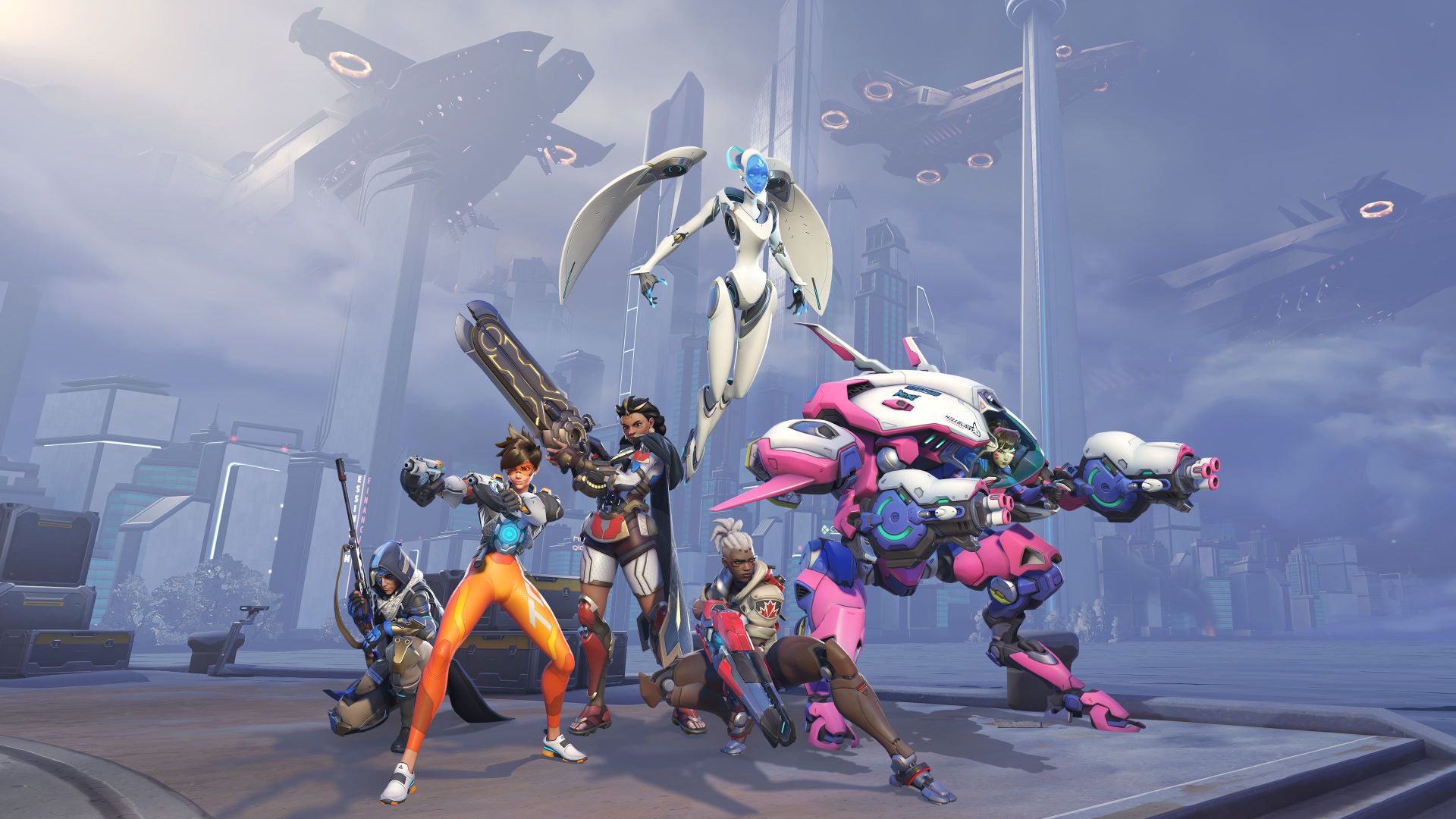
You will find my works on GFX Attack and the works of the other writers who make contributions here. You’ll see that we don’t usually have the time to go looking for images.
This is something we’re trying to improve in 2026 for you… GFX Attack without actual graphics, doesn’t sound like a good idea, does it?
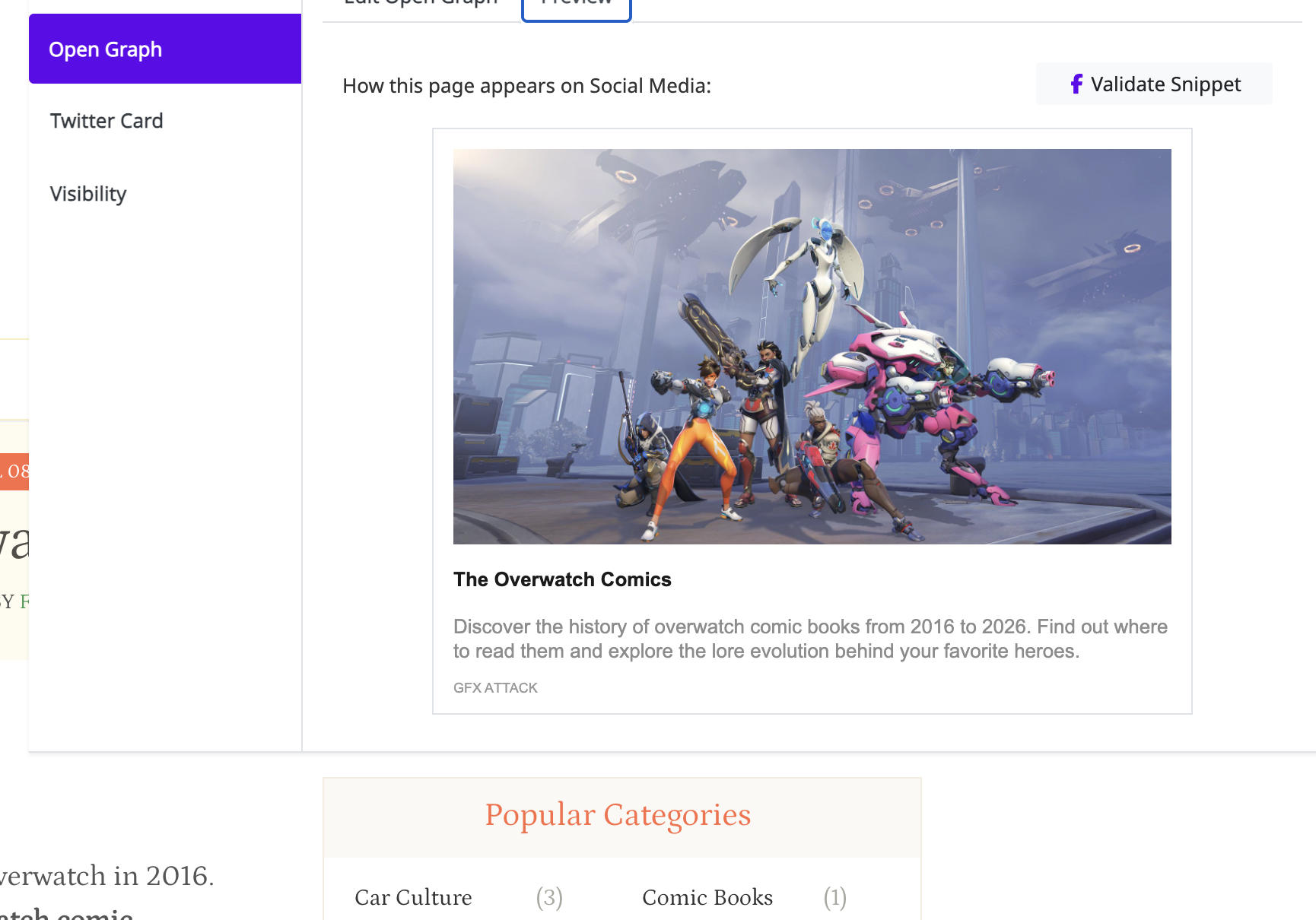
In the image above, you can see how easy I could get my Open Graph image in, so that it shows up when I go right now and publish on Facebook.
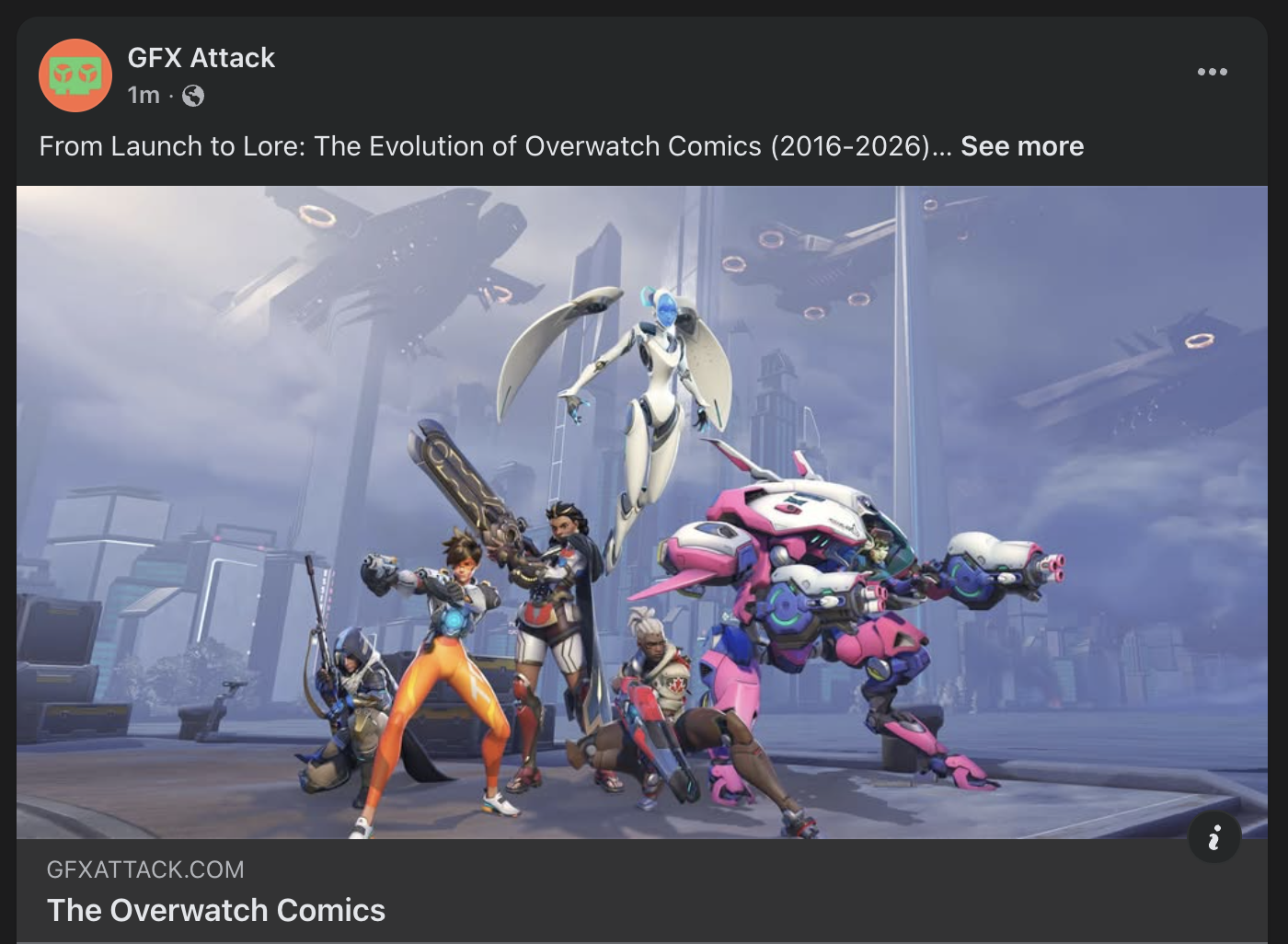
Voila! On our Facebook page for GFX Attack you can now see the post with that exact image.
I like writing and editing, not having to come up with images. When you’re doing this sort of web work for the online medium, you need to find images to place inside the blog posts multiple times and you also need to find images for the Featured image and also for the Open Graph or Twitter Cards.
This brings me to what I wanted to show you today.
Squirrly SEO just released GEO Plugin by Squirrly SEO, which is the version 14 of their popular software for WordPress.
Using this version today has helped me add the images you see on both our page and also on the facebook page.
Squirrly doesn’t just help place the image inside Open Graph and also add alternative text to the image for SEO purposes. Nope. It actually FINDS ALL OUR IMAGES!
Squirrly has a feature called “The Blogging Assistant” which finds images, wikis, blogs and other media from the web, to help you easily do research directly inside WordPress. Their tech-heavy team has created a number of these assistants over the years.
What GEO Plugin by Squirrly SEO doesn’t cover on their pages and not even on their new site dedicated to Answer Engine Optimization and Generative Engine Optimization (AEO and GEO), is the fact that it does more than come up with images:
- copyright-free images
- ordinary images from Google search
- adds an alt text automatically inside the image you add by using their blogging assistant
- the new blogging assistant is found within Step 2 of the Live Assistant from Squirrly (it became embedded over the years directly inside what was previously called: the SEO Live Assistant)
- it can save the images to your Media Library in WordPress – over time, this ensures you don’t lose your media files, and you won’t have surprises (negative ones) that come with loading content from third party sites. Your WordPress, your control.
Now let’s make sure all these panels and settings are turned to ON.
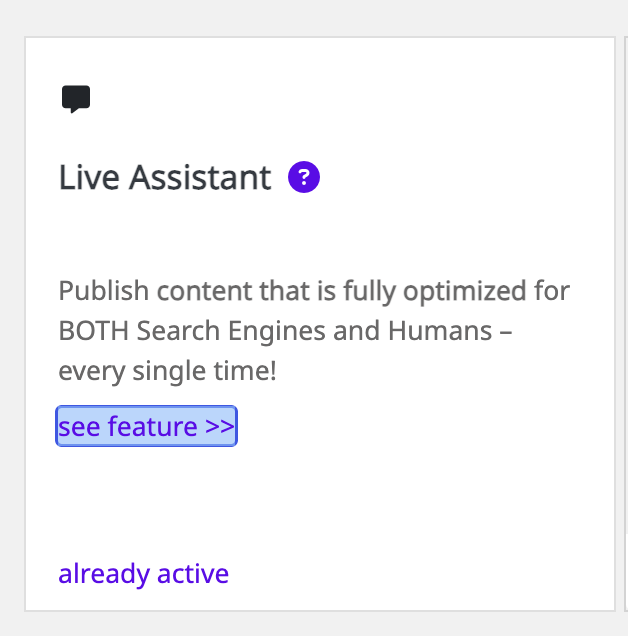
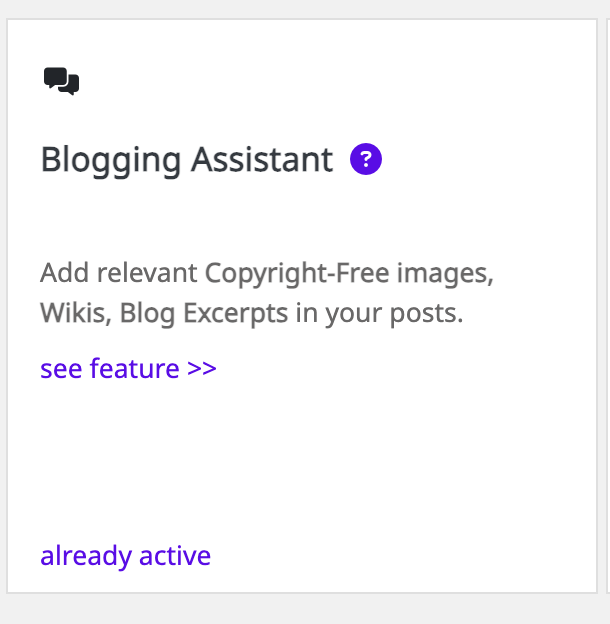
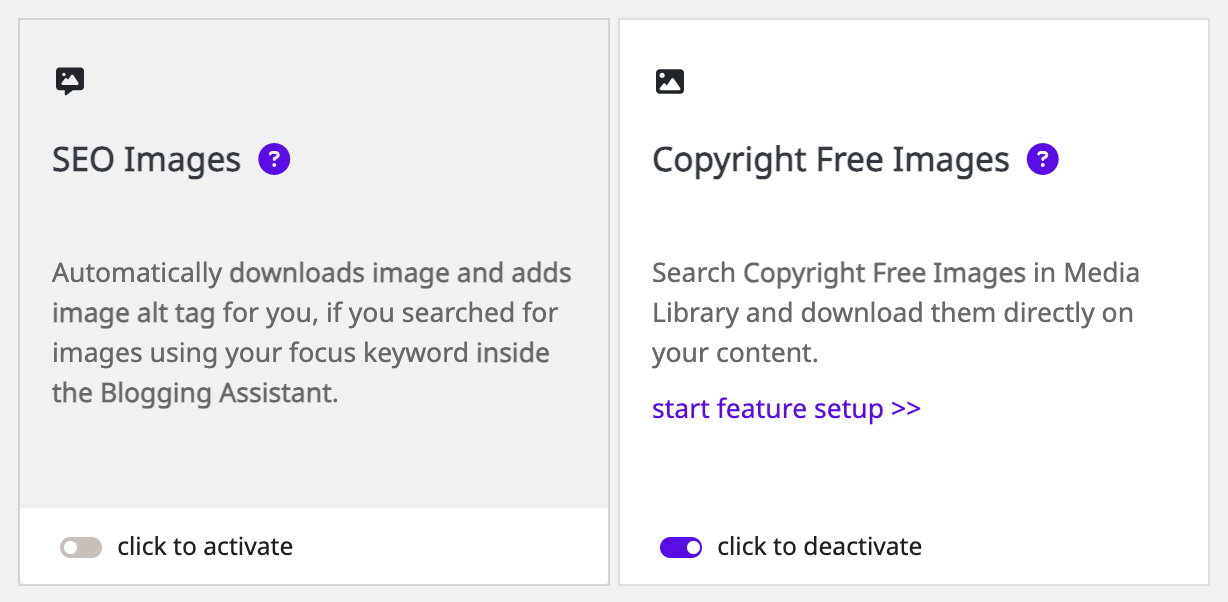
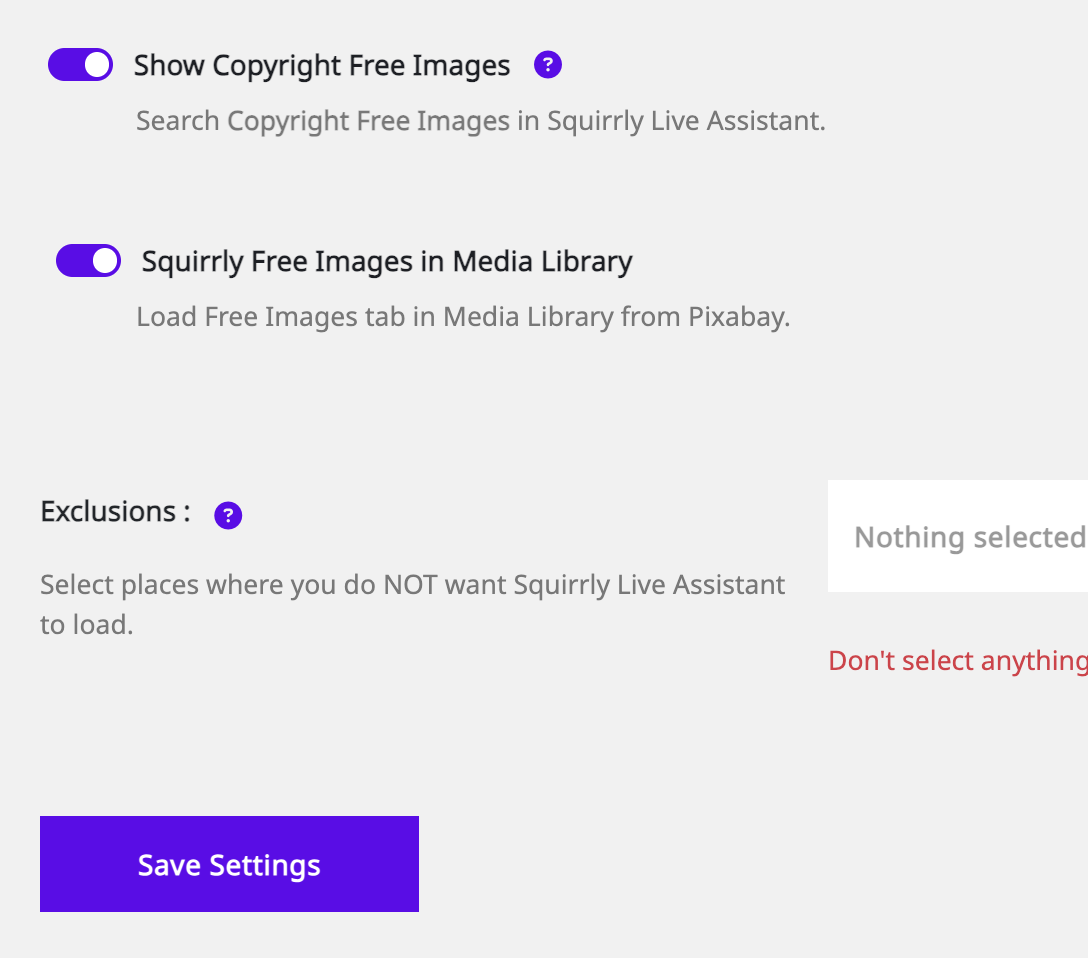
Now, if all of these are activated and switched to ON, the new media files will get automatically added to your media library which will make it super easy for you to also set the images you find as Featured Images inside WordPress.
This is my workflow now for making sure I can bring you great images for the stuff you all read on GFX Attack.
And if you’re a writer, an editor or a blogger: then I hope these insights help you as well in your daily work.
Oh, yes, and before I leave you to it, so you can try it on your own, there’s actually one more thing that gets activated by making the settings I’ve shown you:
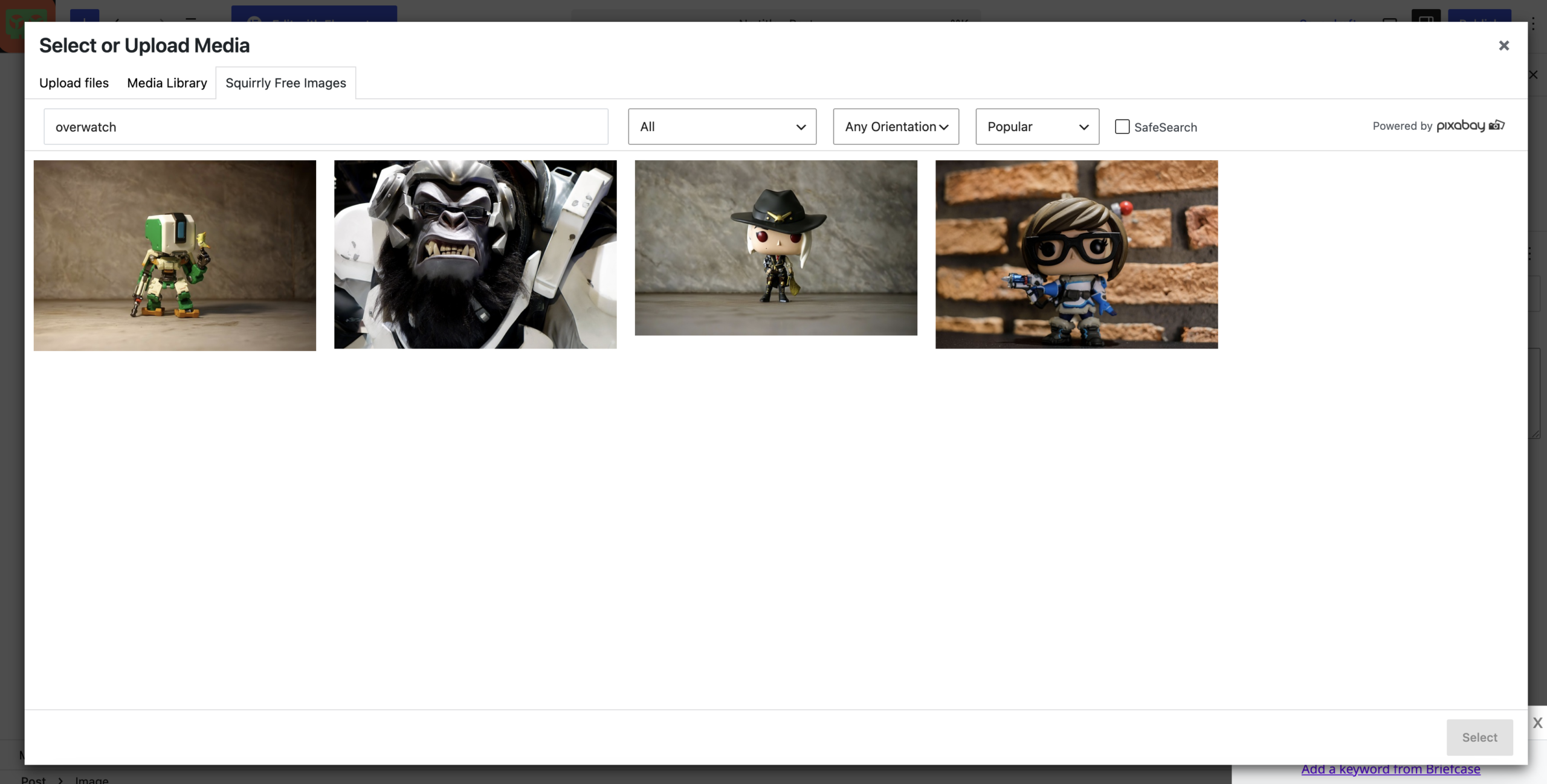
In your Media Library panel, when you’re working on a new page or blog post in WordPress, Squirrly will add “Squirrly Free Images”. Powered by PixaBay search, you’ll get awesome resources you can use, copyright-free.